FinOps Control

FAQ

Answers, without the support-center look.

The essentials for connecting OVHcloud, understanding the trial, and setting up Slack alerts inside FinOps Control.

Quick start

Four clean steps to connect OVHcloud, sync the first dataset, and switch on alerts.

  1. 1 Create an account and verify your email.
  2. 2 Add OVHcloud credentials in account settings.
  3. 3 Run your first sync and review the dashboard.
  4. 4 Connect Slack if you want waste alerts delivered automatically.

Connection

How do I connect to the OVH API?

Generate an OVHcloud token, paste the keys into your FinOps Control account settings, then trigger a sync from the dashboard.

  1. Open https://auth.eu.ovhcloud.com/api/createToken.
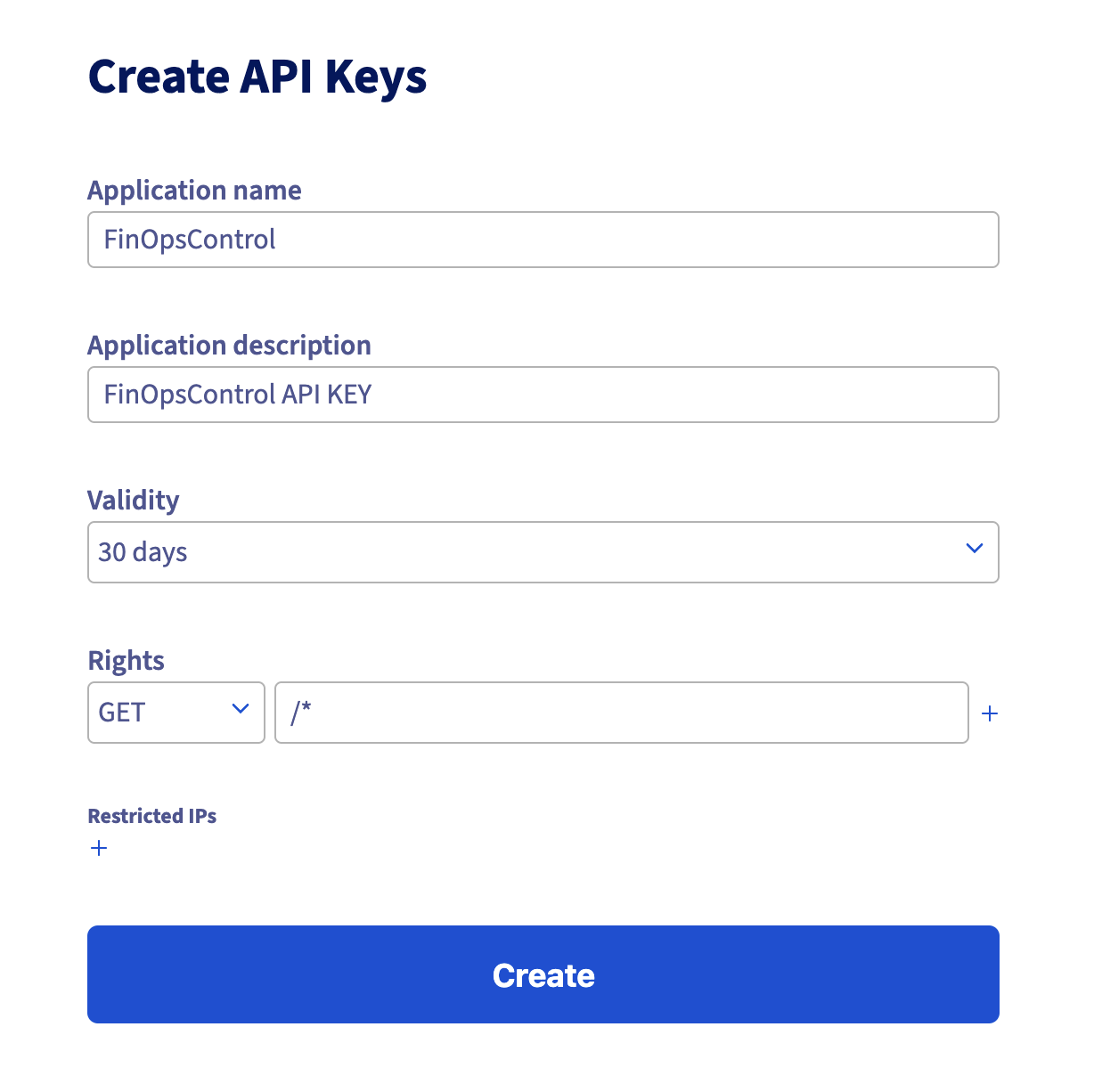
  2. Create your OVH API token.
    OVHcloud API token creation screen
  3. Copy the "Application Key", "Application Secret", and "Consumer Key" into your Account settings.
  4. Save the settings, then run a sync.

Trial

Do I need to pay immediately?

No. Every new account starts with a full 7-day trial, with access to the complete product during that period.

Alerts

How do I add the Slack webhook URL?

Create an incoming webhook in Slack, paste it into your account settings, then preview or send alerts from the Slack alerts page.

  1. Create an incoming webhook in your Slack workspace.
  2. Open "Account Settings" in FinOps Control.
  3. Paste the value into "Slack webhook URL".
  4. Open "Slack alerts" to preview detections and send them manually if needed.

A Slack notification is sent automatically every Monday at 10:00 Paris time.